Aim for a Largest Contentful Paint (LCP) of 2.5 seconds or less, an Interaction to Next Paint (INP) under 200 milliseconds, and a Cumulative Layout Shift (CLS) score of 0.1 or lower. Those three numbers are Google’s Core Web Vitals, and hitting them consistently is what separates a fast Shopify store from one that quietly loses sales. Shopify’s own analysis found that stores with a 1.5 second LCP convert roughly 30% better than stores sitting at 2.5 seconds, and every small increase in load time tends to reduce conversion.
Three fixes move the needle faster than anything else. First, preload your hero image and mark it as eager rather than lazy loaded. Second, audit every app installed on your store and remove or defer anything not earning its keep. Third, compress images and serve them at the correct size for the device requesting them.
- Check your current baseline in the Shopify Web Performance Dashboard before touching anything.
- Run your top three pages through PageSpeed Insights to see which Core Web Vital is failing and why.
- Fix the hero image and app scripts first. They cause the majority of Shopify speed problems.
Key Takeaways
Shopify site speed comes down to hitting Core Web Vitals targets by fixing what merchants control: apps, images and theme code, since Shopify already handles hosting-level speed.
| Point | Details |
|---|---|
| Hit the three CWV targets | Aim for LCP under 2.5 seconds, INP under 200 milliseconds, and CLS under 0.1. |
| Audit apps ruthlessly | Each app can add 30 to 150KB of JavaScript; stores with 3 or fewer apps show markedly better LCP. |
| Preload the hero image | Marking the LCP image as eager with a preload tag typically saves 300 to 800 milliseconds. |
| Trust field data over lab scores | Judge success using Shopify’s Web Performance Dashboard or CrUX data at the 75th percentile over a 28-day window. |
| Get an expert audit | Fylde Digital’s Shopify performance audits identify app, image and theme fixes ranked by impact. |
Authoritative resources and tools
Shopify’s performance documentation covers built-in platform optimisations. PageSpeed Insights and Core Web Vitals benchmarking provide diagnostic data, while ShopScan offers a fast standalone check.
Table of Contents
- Quick 24 to 72 hour checklist for fastest wins
- How do you measure Shopify site speed properly?
- Why do apps, images and themes slow Shopify stores down?
- Step-by-step fixes that actually move your Core Web Vitals
- Which pages should you test and how often?
- A simple troubleshooting workflow for speed regressions
- What speed work does Shopify already handle for you?
- Best practices for Shopify theme selection to optimize speed
- How do you optimise Shopify checkout speed specifically?
- Using the theme customiser and code splitting without breaking things
- Managing backend processes that quietly slow your frontend
- Agency perspective: what audits actually reveal
- How Fylde Digital can help your Shopify store run faster
- Sources
Quick 24 to 72 hour checklist for fastest wins
You do not need a developer for everything on this list, but you will need one for a few items. Splitting the work this way gets you measurable gains within a few days rather than waiting on a full rebuild.
What you can do yourself:
- Open the Shopify Web Performance Dashboard in your admin and note your current LCP, INP and CLS scores.
- Go through every installed app and disable embeds you are not actively using.
- Uninstall apps you no longer need entirely, not just deactivate them.
- Re-upload oversized product and banner images at the correct dimensions rather than letting the browser scale them down.
What needs a developer:
- Add a preload tag for the LCP image with an
imagesrcsetattribute. - Inline critical CSS so the page above the fold renders without waiting on external stylesheets.
- Defer non-essential JavaScript so it loads after the page becomes interactive.
- Fix any Liquid loops that are re-querying the same data on every page load.
Wait at least a few days after each change before judging the result. Lab scores update instantly, but real-world field data needs time to accumulate.
Pro Tip: Screenshot your Web Performance Dashboard scores before you start. It is the only way to prove, in hard numbers, that a change actually worked rather than just feeling faster.
How do you measure Shopify site speed properly?
Improving Shopify site speed starts with knowing which numbers actually matter, because lab tests and real-world data can disagree wildly. The Shopify Web Performance Dashboard gives you Real User Monitoring (RUM) data measured at the 75th percentile, meaning three-quarters of your actual visitors experienced that speed or better. PageSpeed Insights combines a Lighthouse lab test with Chrome User Experience Report (CrUX) field data pulled from real Chrome users who visited your site. WebPageTest offers a detailed waterfall view for diagnosing exactly which request is slow, and ShopScan gives a fast, no-fuss PageSpeed Insights style scan when you just need a quick sanity check.
The three metrics you are chasing:
- LCP measures how long the largest visible element, usually your hero image or headline, takes to render. Target: 2.5 seconds or under.
- INP measures how responsive your page feels when someone clicks, taps or types. Target: under 200 milliseconds.
- CLS measures how much content jumps around as the page loads. Target: 0.1 or lower.
Lab data from Lighthouse is useful for diagnosis, but it only reflects one test on one device. Field data from CrUX and Shopify’s own RUM reflects what actually happened to real customers on real connections, which is what Google uses for search ranking and what you should trust for conversion decisions.
Why do apps, images and themes slow Shopify stores down?
Most Shopify speed problems trace back to the same handful of culprits, and they are almost always self-inflicted rather than platform limitations. Independent benchmarking from Core Web Vitals shows a clear correlation between app count and failing Core Web Vitals scores.
- Apps and third-party scripts. Each installed app typically adds between 30KB and 150KB of JavaScript, and stores with many app scripts tend to have poorer performance metrics than those with fewer apps.
- Oversized hero images. The featured image at the top of your homepage or product page is almost always the element Google measures for LCP, and an unoptimised 3MB banner will tank your score regardless of anything else you fix.
- Heavy themes and Liquid rendering. Complex themes with nested loops and repeated data lookups slow down Time to First Byte (TTFB), the delay before the browser receives anything at all.
- Late-injected banners and web fonts. Cookie banners, review widgets and custom fonts that load after the initial render are the usual cause of layout jumps that hurt CLS.
Pro Tip: Before blaming your theme, disable every app one at a time and re-test. It is tedious, but it is the fastest way to find the exact script that is dragging your INP down.
Step-by-step fixes that actually move your Core Web Vitals
Once you know what is broken, the fixes themselves are mostly mechanical. Work through them in this order for the biggest gains first.
- Fix your image strategy. Compress images before uploading rather than relying on Shopify to do it for you, request responsively sized images using Shopify’s
image_urlparameters, and mark your hero image asloading="eager"with a preload tag usingimagesrcset. Never lazy-load the image that renders above the fold. Practitioner audits have recorded 300 to 800 milliseconds saved on LCP from preloading alone. - Audit every app. List every app installed, check what script tags and embeds each one injects, disable embeds you do not use, and fully uninstall anything redundant. Case studies of app removal have shown mobile LCP improvements of around 1.1 seconds from cleanup alone.
- Tidy up theme and Liquid code. Use Shopify’s own Theme Inspector for Chrome to find slow-rendering Liquid lines, reduce nested loops, inline critical CSS for above-the-fold content, and defer everything else.
- Handle scripts and fonts properly. Defer or make async any script that is not needed immediately, lazy-load videos and embedded content below the fold, and always reserve layout space with explicit width and height attributes so images and embeds do not cause the page to jump once they load.
Expect the biggest single jump from the app audit, often more than from any other single change, with hero image preloading a close second. Layout shift fixes tend to be smaller in raw numbers but disproportionately improve how “solid” a store feels to shoppers, which shows up in lower bounce rates over time.
Which pages should you test and how often?
Test your homepage, your best-selling product page and your top-performing collection page. Shopify’s own reporting focuses on these three because they carry the highest traffic volume and the widest range of visitor devices, giving you the most representative sample of real-world performance.
- Shopify Web Performance Dashboard for ongoing RUM data at the 75th percentile.
- PageSpeed Insights for diagnosing exactly what is failing and why.
- WebPageTest for a full waterfall view when you need to find a specific slow request or long-running script.
- ShopScan for a fast check when you just want a quick read without digging through detailed reports.
Run a quick check immediately after any change to confirm nothing has broken. Then leave it alone. Field data needs roughly 28 days to build a reliable 75th percentile picture, so judge success against that window rather than a single test run an hour after deployment.
A simple troubleshooting workflow for speed regressions
When speed drops unexpectedly, work through this sequence rather than guessing.
- Verify the regression is real using the Shopify Web Performance Dashboard’s field data first, not a single lab test.
- Identify the gap: is TTFB slow, suggesting a theme or app problem, or is the gap between TTFB and LCP the issue, pointing to render-blocking resources? For INP, look for long JavaScript tasks blocking the main thread. For CLS, check for images or embeds missing width and height.
- Fix the highest-impact item first, then remeasure before moving to the next.
- Check for orphaned code left behind after uninstalling an app, since leftover snippets in theme files keep loading even after the app itself is gone.
Pro Tip: Keep a simple log of every app you uninstall and the date. When a regression appears weeks later, that log usually points straight to the culprit.
What speed work does Shopify already handle for you?
A meaningful chunk of Shopify site speed is out of your hands entirely, and knowing this saves you from wasting time duplicating work the platform already does. Shopify runs its storefronts on a global content delivery network, using providers like Cloudflare and Fastly, which means static assets are served from servers physically close to each shopper rather than a single distant origin server. That infrastructure is a large part of why Shopify’s platform analysis found stores rendering up to 2.4 times faster on average compared with many self-hosted alternatives.
Shopify also converts and serves images in modern formats like WebP and AVIF automatically where a visitor’s browser supports them, without you needing to manually convert every product photo. On top of that, the platform serves pages over HTTP/2, compresses responses with Brotli, and applies a full year of browser caching to static assets by default.
None of this means you can ignore speed. It means your energy is better spent elsewhere. You cannot choose a different hosting provider on Shopify, and you gain nothing from trying to configure caching headers yourself, because Shopify’s help documentation confirms these layers are locked in at the platform level. Where merchants genuinely control the outcome is in app choices, image sizing before upload, and theme code quality. Chasing platform-level fixes that Shopify already handles is a common time sink; the real opportunity sits in the layers you can actually touch.
Best practices for Shopify theme selection to optimize speed
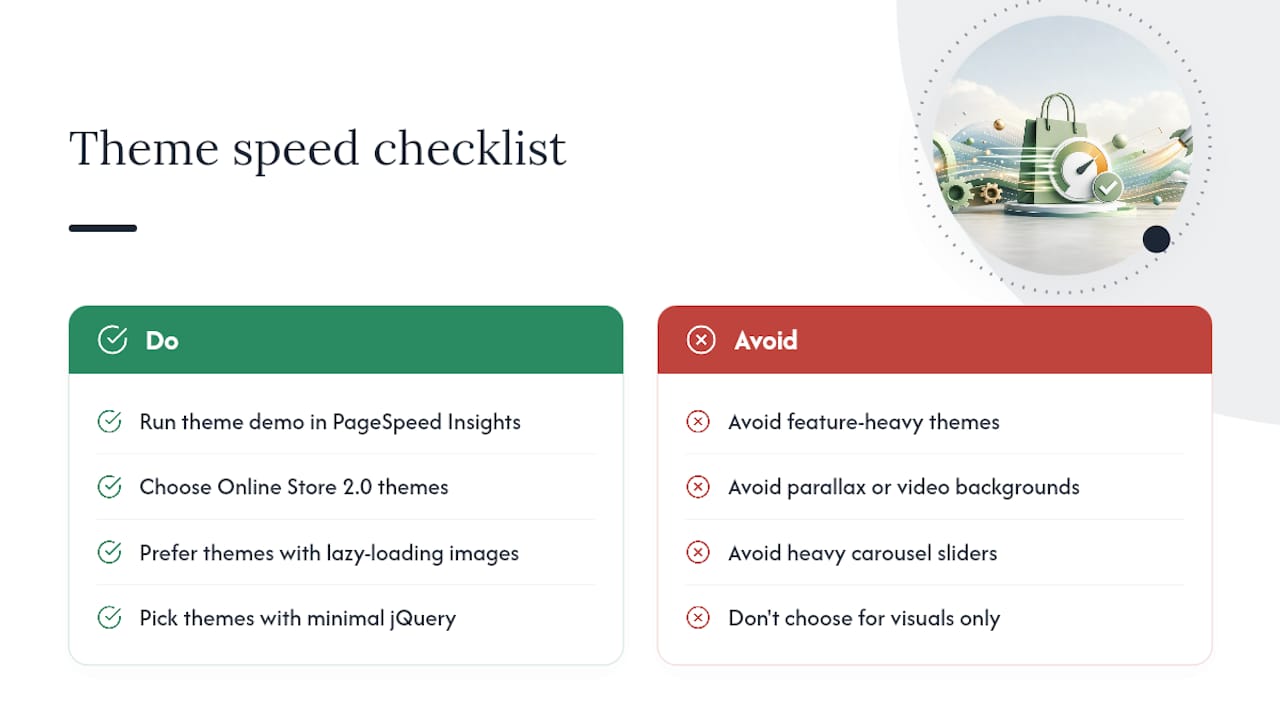
Choosing a theme is one of the highest-leverage decisions you will make for site speed, and it happens once rather than needing constant maintenance. Not all themes in the Shopify Theme Store are built equally. Some ship with dozens of unused features, sliders, and animation libraries baked in whether you use them or not, and that extra weight shows up directly in TTFB and LCP.
Before installing anything, run the theme’s demo store through PageSpeed Insights. A theme that scores poorly on its own polished demo content will almost certainly score worse once you have added your own product catalogue, apps and tracking scripts on top.
Favour themes built on Shopify’s Online Store 2.0 architecture, which uses JSON templates and sections that load more efficiently than older Liquid-only structures. Look specifically for themes that advertise lazy loading for below-the-fold images by default, minimal reliance on jQuery, and a section count you can actually understand rather than a sprawling settings panel with hundreds of toggles.
Resist the temptation to pick a theme purely on visual richness. A theme with parallax scrolling, video backgrounds and heavy carousel sliders looks impressive in a demo but often drags LCP and INP down in production. If your current theme is already causing problems, migrating to a leaner one is frequently more effective long-term than endlessly patching the existing code, though it is a bigger job than a quick optimisation sprint. A professional web design review before committing to a theme migration will usually flag these issues before they cost you a rebuild.
How do you optimise Shopify checkout speed specifically?
Checkout speed deserves separate attention because it is the one part of the buying journey where a slow page costs you a completed sale, not just a slightly worse browsing experience. Shopify’s checkout is largely hosted and locked down for security and PCI compliance reasons, which limits how much you can customise compared with your storefront theme.
Even within those limits, several things are still within your control. Keep any Shopify Plus checkout customisations minimal. Every extra script or custom field added to checkout.liquid or checkout extensibility adds processing time exactly where shoppers are most likely to abandon if anything feels sluggish.
Review which apps inject scripts into your checkout flow. Post-purchase upsell apps, trust badge widgets and analytics pixels are common offenders, and each one adds latency at the exact moment a customer is deciding whether to complete a purchase. Audit these separately from your general storefront app audit, because checkout scripts often go unnoticed since they only fire during a transaction, not during normal browsing or testing.
Payment method icons and trust seals should be compressed and properly sized like any other image. Test your checkout flow specifically in PageSpeed Insights or WebPageTest rather than assuming that fixing your homepage automatically fixes checkout, since it runs on separate infrastructure with its own script loading behaviour. A faster checkout has a direct line to your conversion rate, often more directly than homepage speed does, because it is the final step before revenue lands.
Using the theme customiser and code splitting without breaking things
The Shopify theme customiser is a genuinely useful tool for speed work, not just visual layout, because every section and block you add or remove there has a direct performance cost. Each section you enable in the customiser typically loads its own CSS and JavaScript, so a homepage stacked with a dozen decorative sections carries far more weight than one built around five purposeful ones.
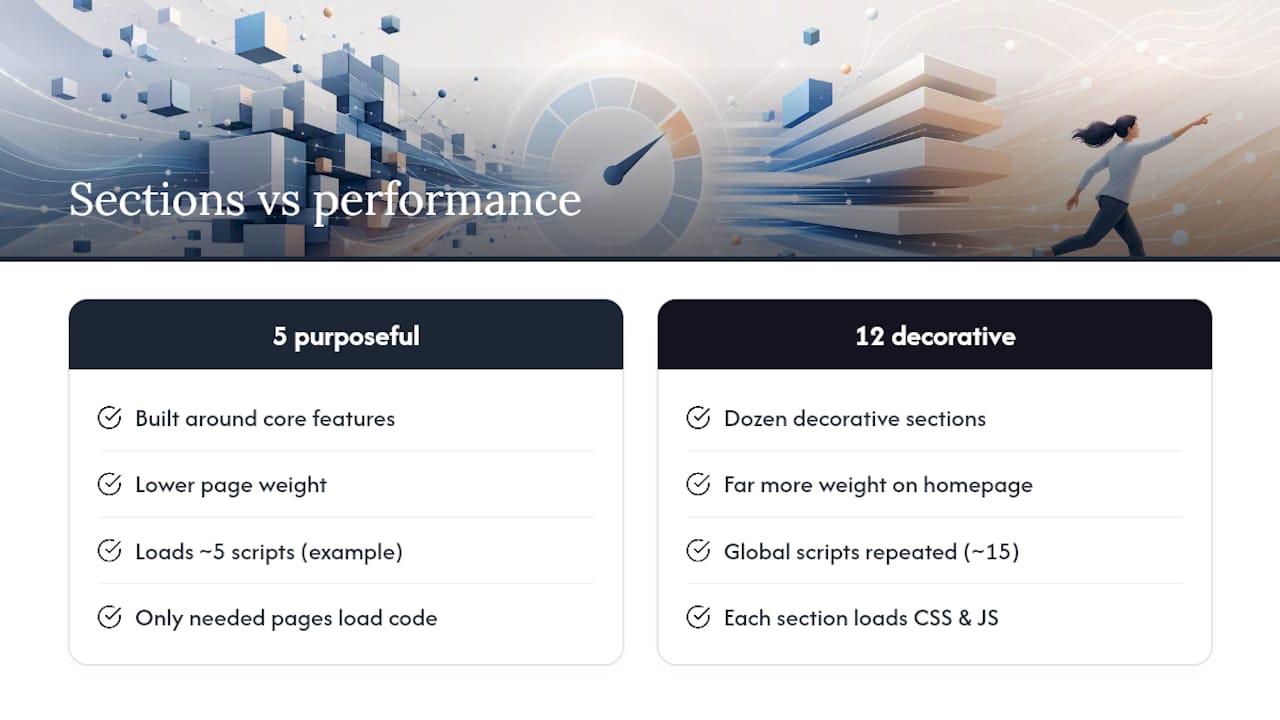
Go through your customiser settings and disable any section not actively contributing to conversion. A newsletter popup section, an Instagram feed embed and an unused testimonial carousel sitting dormant in your theme settings can each be adding render-blocking requests even if they look empty or unused on the page.
Code splitting, in the Shopify context, mostly means loading JavaScript only on the pages that actually need it rather than bundling everything into a single site-wide script. If your theme currently loads a size-guide script on every page rather than only on product pages, that is unnecessary weight repeated across your entire catalogue. Developers can achieve this through Shopify’s section-specific JavaScript loading pattern, where a script tag only fires within the section that requires it rather than sitting in your global theme.liquid file.
This is technical work best handled by a developer familiar with Liquid and Shopify’s asset pipeline, but the payoff compounds. A homepage that loads five scripts instead of fifteen is faster on every single page view, not just once.
Managing backend processes that quietly slow your frontend
Not every speed problem lives in what shoppers can see. Backend processes running behind your Shopify theme can add real delay to page rendering even though nothing visual points to the cause. Metafields are a common source of this: if your theme pulls in dozens of metafield values per product, each one adds a small Liquid processing cost, and on a collection page displaying 24 products at once, those small costs multiply quickly.
Audit how many metafields your theme actually queries per page load, and remove references to any that are no longer used by your current design. This is especially common after a theme change or app uninstall, where old metafield calls get left behind in Liquid files even though the feature they supported is long gone.
Script loading order matters just as much as script count. Apps and custom code that inject scripts into your theme’s <head> block rendering until they finish loading, while scripts placed just before the closing </body> tag let the page render first. Ask your developer to check where third-party scripts sit in your theme file structure, because a script’s position often matters as much as its size.
Webhooks and background app processes rarely affect frontend rendering directly, but poorly built apps that make synchronous calls to external services during page load are a real exception. If a page feels slow to start rendering at all, before any visual content appears, a backend or app-side delay is usually the cause rather than anything client-side.
Agency perspective: what audits actually reveal
Every Shopify speed audit we run turns up the same pattern: an app graveyard of tools installed for a single campaign and never removed, an un-preloaded hero image, and a Liquid loop nobody has looked at in years. A single focused audit day typically identifies every major issue; fixing the theme-level problems properly is the multi-week part.
— tibor
How Fylde Digital can help your Shopify store run faster
Chasing Core Web Vitals across apps, themes and Liquid code takes time most store owners simply do not have between running the actual business. Fylde Digital runs Shopify performance audits that go beyond a single PageSpeed Insights score, checking your app footprint, image handling and theme code against real field data from your own store.

A typical audit delivers a prioritised list of fixes ranked by impact, covering exactly which apps to remove, which images to resize, and which Liquid sections are dragging your TTFB down, usually turned around within a few working days rather than weeks. For stores that need more than a one-off fix, Fylde Digital also handles full theme optimisation and ongoing app remediation as part of broader web design work, and pairs speed improvements with conversion-focused layout changes so the gains translate into more completed sales, not just a better lab score. If checkout speed or backend script bloat is costing you sales right now, request a website and speed review to get a concrete list of fixes rather than guessing where to start.
Sources
- Shopify site speed: Why faster storefronts convert higher (2026) – Shopify
- Improving your online store performance – Shopify Help
- Core Web Vitals for Shopify: Complete Guide (2026) – Core Web Vitals
- The hidden impact of Shopify apps on site performance and conversions – NerdBot